
Insurance Eligibility
Why Insurance Eligibility Matters
Why it matters
Patients who have active and valid insurance coverage for their specific date of service are considered eligible.
We recommend checking eligibility before every appointment. Doing so tells you two things:
-
Whether or not the payer will cover the visit
-
If the payer will cover the visit, how the cost will be split between the patient and the payer (copay, coinsurance, etc.). Confirming this in advance can also help prevent claim denials.
Coverage changes constantly — deductibles reset, plans lapse, patients switch carriers — so eligibility needs to be verified before each visit, not just once.
Goal: For every insurance visit, confirm eligibility in advance. A green check (✅) in Canvas means the insurance is eligible.
Best practice: Always verify eligibility before each visit, since coverage can change at any time.
How eligibility checks work in Canvas
Canvas runs eligibility automatically:
- 3 days before a scheduled visit, and
- again whenever a coverage is added or updated.
Confirm Coverage and Run Eligibility in Canvas
Canvas runs eligibility automatically 3 days before scheduled visits and again when a coverage is added/updated.
After the eligibility check runs, the coverage card shows one of these statuses:
✅ Eligible – active coverage
❌ Ineligible – invalid/inactive; troubleshoot
⚠ Error – system/payer issue; troubleshoot
For any status other than the ✅ Eligible, follow the troubleshooting steps below.
You can also run a manual eligibility check at any time:
- Patient Profile → Coverages → click on the active coverage card, ⋯ → Verify Eligibility.
- After it runs, review the status on the coverage card.
Document Patient Responsibility within Insurance Card Information
Once you know a patient’s insurance is eligible, document the patient responsibility for the visit.
Patient responsibility includes any co-pays or co-insurance for the visit. The goal is to collect what patients will need to pay for the visit at the time of visit whenever possible as it is much harder to chase payment down after a visit. Capturing this information on the insurance coverage card serves as a quick reference for what the patient needs to pay for the visit at the time of the visit.
Knowing Patient Responsibility
By reviewing the insurance card itself, it may be clear to pull what patient responsibility is for a visit.
- Copay amount: This is sometimes listed on the card. If you have been enrolled with this patient’s health plan and are active, you are an in-network provider. Behavioral Health providers are considered “specialists” rather than PCPs.
- Deductibles and Co-insurance: These can be a bit more tricky and the specific amount a patient needs to pay may not be clear from looking at the card itself. In these situations, it is best to use the Eligibility or Benefits Checker feature. (see more on this below). If you are still unsure, send an email to support@praxhealth.com so the Prax team can look into this individual more closely.
Each of these insurance terms are outlined in greater detail below under “Collecting Visit Payment.”
Troubleshooting (when not ✅ Eligible)
Remember, eligibility is as much an art as a science. You may need a few tries to get a green check. If you are stuck or unsure, please reach out to support@praxhealth.com for assistance. It is important to get the green check for insurance eligibility as it will help ensure insurance pays for the visit.
Work top‑to‑bottom; re‑run eligibility after each fix.
- Review any details of failure are provided by clicking on the three vertical dots on the right side of the coverage card and selecting Review Eligibility to view returned benefits and notes. What is returned can give you insight into which of the fixes below will result in insurance being verified and gaining a ✅.
- Check demographics & member data
- Confirm the spelling of name, date of birth, address, sex, and Member ID (no spaces/dashes unless payer requires).
- ID with extra suffix digits (e.g., “-01”, or family ID + person code): try both with and without the suffix; some payers require the core ID only. Note: a good amount of trial and error is expected here as payers are all a bit different and there aren’t good rules to anticipate what payers will need.
- Confirm subscriber
- Ask the patient if they are the subscriber to the policy. If they are not, the subscriber’s name, date of birth, and relationship will have to be added and then re-run.
- Is the coverage current?
- If switching plans, expire the old coverage and add the new one (don’t overwrite).
- Still unsure?
- Email Prax Support (Support@Praxhealth.com) with patient name and date of birth and a brief description of where you are stuck with getting to eligibility. Prax Support may also leverage the payer portals or call the plan itself to verify benefits.
Resource: Insurance Eligibility Overview
Collecting Visit Payment
Insurance Overview: Copays, co-insurance, deductibles, etc.
Understanding how patient payments work when insurance is involved is essential for accurate payments for services rendered. Being clear with patients up front about their responsibility also helps reduce later confusion and unexpected bills. Insurance plans use a combination of tools like co-pays, deductibles, and co-insurance to determine how much a patient owes for care. What follows is a walk through of these concepts and a step by step framework to help you confidently navigate patient payments.
Key Concepts
1. Copay
- A fixed amount the patient pays at the time of service (e.g., $20 for a primary care visit or $30 for a specialist visit). The cost does not depend on what services are provided during the visit.
- The amount is determined by the insurance plan and must be paid at the time of service.
- It typically does not count toward the deductible, but sometimes does count toward the out-of-pocket maximum.
2. Deductible
- The total amount a patient must pay out-of-pocket each year before insurance starts sharing costs.
- Once the patient has paid this amount, their insurance starts to contribute to the cost of their care.
- Example: If a deductible is $1,000, the patient pays the first $1,000 in covered services before co-insurance applies.
3. Co-insurance
- A percentage of the cost of a healthcare service a patient is responsible for paying after the deductible is met.
- Example: 20% co-insurance means the patient pays 20% of covered costs, the insurer pays 80% of the covered costs after the deductible has been satisfied.
4. Out-of-Pocket Maximum
- The most a patient will pay for covered healthcare in a given year. It protects patients from very high medical expenses.
- Once the out-of-pocket maximum is reached, the insurance company pays 100% of all covered medical costs for the rest of the year.
- All payments for deductibles and co-insurance count toward this maximum. Copays may or may not count toward the maxim depending on the specific insurance plan.
4. Negotiated or Contracted Visit Rate
- This is the contracted amount an insurance payer will pay for specific billing codes.
- This is the amount a patient with remaining deductible pays in its entirety or a percentage of which they pay if they have co-insurance.
- This rate varies by payer and can be found in each individual payer’s fee schedule.
How to determine patient responsibility
- If a patient has a co-pay it is collected at the time of visit.
- If a patient has a deductible and it has not been met yet, the patient pays the negotiated rate for the service until their deductible is reached.
- The amount of remaining deductible changes throughout the year as a patient utilizes healthcare services. To determine the remaining deductible, Prax Support can reach out to the insurance company on your and the patient’s behalf.
- After a deductible is met, the patient and insurer share the costs of the visit. In these cases, any co-insurance percentage is taken into account. The patient needs to pay their co-insurance percent of the negotiated rate of the visit while insurance pays the remaining percentage.
- Once a patient’s out-of-pocket maximum is met, the patient no longer has to pay their deductible or co-insurance. If they have not yet met their maximum, they are responsible for deductible or co-insurance amounts.
- The amount a patient has remaining to pay out-of-pocket changes throughout the year as a patient utilizes healthcare services. To determine the remaining deductible, Prax Support can reach out to the insurance company on your and the patient’s behalf.
In each of these cases, submit the claims to insurance. For patients who will be paying the entire cost of visit because their deductible has not yet been reached, submitting the claim allows the insurance company to count the patient payment toward meeting their deductible and out-of-pocket maximum.
Insurance FAQ
The patient has a large deductible that has not yet been reached. What do they owe for the visit?
First, for a visit to count against a patient’s deductible, it must be sent to their insurance as a normal claim. Otherwise, the payer (insurer) won’t know about the visit, and it will not count toward the deductible. In this case, the payer will process the claim but pay nothing, leaving 100% of the amount due to the patient.
Second, if the deductible has not been met—as in this case—then the patient pays you 100% of the visit cost, ideally at the time of service. This cost needs to match your contracted rate. If you overbill, you’ll refund the patient once the insurance processes the claim. If you underbill, you’ll need to collect the balance from the patient (which is often harder).
I have a patient who wants to use HSA/FSA to pay for a visit. How do they do this?
Flexible Spending Accounts (FSAs) and Health Savings Accounts (HSAs) are tax advantaged accounts that allow individuals to pay for qualified medical expenses (like copays, deductibles, or co-insurance) with pre-tax dollars. They are designed to help individuals save money on healthcare. Their main benefit is that money contributed to these accounts is not subject to federal income tax so when a patient uses these funds to pay for an eligible medical expense, the transaction is tax free.
When a patient presents a FSA or HSA card, simply process it like any other debit card. Nothing additional is required on your end. The patient is responsible for ensuring the expense is ‘qualified’ and for keeping their receipts for their records as they may need them for their plan administrator or the IRS.
If a patient pays for a service out-of-pocket, they can submit the bill or receipt to their FSA/HSA administrator for reimbursements. In these cases a clear itemized bill that includes date of service, patient name, and a description of the service are needed for patient reimbursement.
I am providing some services that insurance will not cover because they are aesthetic in nature. How do I bill for these services?
You should bill for any non-insurance covered procedures as self-pay and not submit documentation to insurance for these visits. If the visit included some insurance covered services and some non-insurance covered services, generate separate notes and bill each separately.
How do I know what to charge patients who have remaining deductible or co-insurance?
You should charge patients the rate the health insurance company or payer has negotiated with Prax for the cost of the visit. This is the amount the insurance company will count toward the patient meeting their deductible and/or out-of-pocket maximum. This amount may be different from the self-pay amount or the amount that shows in Canvas. This amount will also varies from payer to payer
To find the negotiated or contracted rate, you will want to look at the fee schedule associated with your payer contract. It is ideal to charge the patient this rate at the time of the visit because collecting payment after visits is much more difficult and often results in collecting only 50% of the time. In the chance a patient is overbilled, you’ll refund the patient once the claim processes.
A best practice here is to create a cheat sheet that has your most commonly billed CPT codes and the contracted rates by each provider for easy access and communication with patients.
If a patient has co-insurance and remaining deductible, what do they pay?
Patients pay toward their deductible first. Once their deductible is met, co-insurance applies. So if a patient has $2,000 remaining deductible and co-insurance of 20% and the cost of service is $200, the patient will pay $200 today for the visit. The claim will be submitted to insurance so they can decrease the remaining deductible by the $200 cost of service leaving the patient with $1,800 in remaining deductible. Once the deductible amount reaches $0, the patient will pay 20% for their service. If the cost of the service, the patient will pay $40 and the insurance company will pay the remaining 80% or $160.
Knowing Patient Responsibility in Real Time: Utilizing the Prax Eligibility Checker
Prax has built the ability to check patient benefits in real time. This provides additional information that is often available in calling a health plan or looking up the patient in their online portal with an easier click of a button. Remaining deductible amounts and out of pocket maximums change as patients utilize their coverage. The benefits checker returns real time, up to date information regarding these amounts. The benefits checker works by connecting directly with the payer portals or clearinghouses and pulling the data into the EHR.
To use the benefits checker:
- Once you have insurance information uploaded in the patient’s profile, click on the white cross and blue circle icon in the icon bar at the top of the chart.
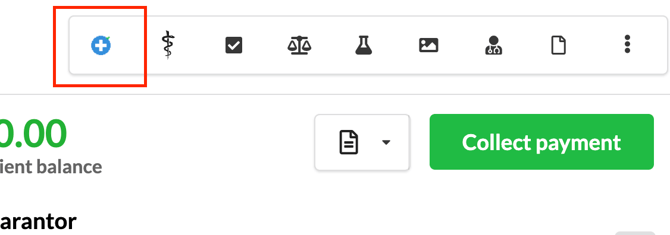
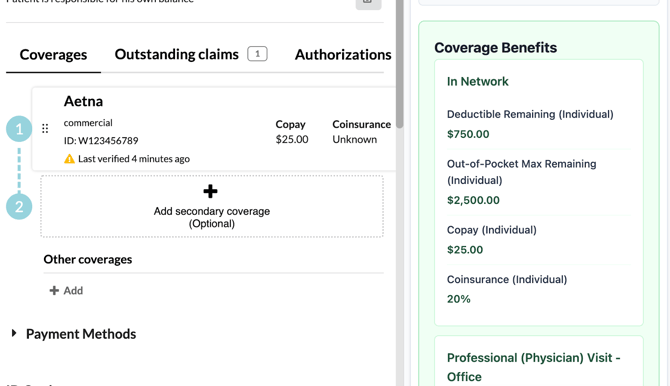
- This will open a tab to the right of the profile with insurance eligibility information. You can scroll through to see details of any copays, co-insurance, deductibles, out of pocket maximums and specifics by different visit types.
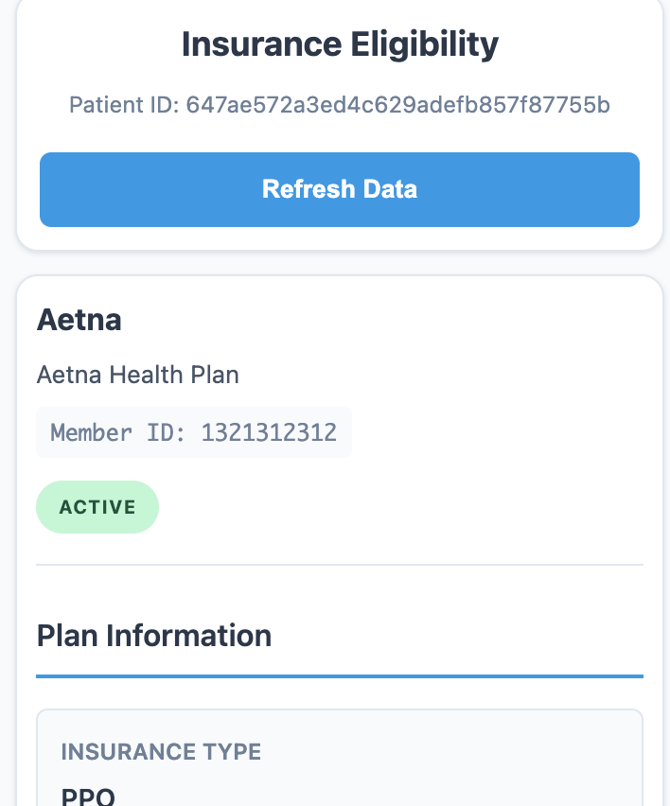
- To update the information, click the blue “refresh” button
- For ease, update any co-pay or co-insurance information in the insurance section for reference in future visits.
Troubleshooting the benefits checker if it is not returning eligibility information:
- Make sure the clinician seeing the patient is noted as a member of the patient’s care team. The “Care Team” section is found in the patient profile, on the left hand side underneath consents and above addresses.
- Make sure the “Patient Eligibility Defaults” that are found beneath the insurance information and the ID Cards are empty.
- Review the message in the Benefits Checker. If the health plan portal is down and so information cannot be shared, at this time, that will be noted in the checker.
Resource: Benefits Checker Video
Collecting payment in the visit
It is best to collect all patient responsibility - copay, deductible, and/or co-insurance at the time of the visit. The exact deductible and co-insurance amounts will be estimates as the exact amounts are finalized when the claim is processed and the insurer issues an Explanation of Benefits (EOB). According to industry averages, only 50% of patient responsibility is collected after a visit ends, so it is important to collect this information at the time of the visit. Adjusting patient responsibility for over or under-estimates can be done after the claim is processed.
How To:
- For a copay: Update the patient copay amount on the insurance card portal. This amount will automatically be referenced in the collect payment portal.
- If patients want to pay their copay only via their patient portal, in the claim, create a posting for the copay amount in the adjustment box while updating the adjustment type as PR-3. This will push the copay amount to the patient to pay in their portal.
- For a deductible: In the claim for the visit, create a posting. In the pop-up, choose the adjustment type as PR-1. PR-1 tracks that a deductible was paid. Add the contracted amount the patient will pay in the ‘adjustments’ box. Click ‘create a posting.’ You will see that the patient balance has now increased by the amount you entered. You can now collect payment for that amount.
- For co-insurance: In the claim for the visit, create a posting. In the pop-up, choose the adjustment type as PR-2. PR-2 tracks that co-insurance was paid. Add the amount of co-insurance the patient is paying in the ‘adjustments’ box. Click ‘create a posting.’ You will see that the patient balance has now increased by the amount you entered. You can now collect payment for that amount.
Resource: Collecting patient responsibility for a visit
Visit Documentation & Completion
Visit CPT and Diagnosis Codes
Every visit requires at least one procedure (CPT) code and at least one diagnosis (ICD) code.
ICD or Diagnosis Codes:
The ICD (International Classification of Diseases) codes describe diagnoses, disease, or the patient’s condition/reason for the visit. They explain why a patient was seen. Examples include: generalized anxiety disorder, opioid dependence, type 2 diabetes mellitus without complications, etc. This is a standardized system created by the World Health Organization (WHO) to classify disease, symptoms, and health conditions worldwide. ICD-10 refers to the current 10th version of the system.
CPT or Procedure Codes:
The CPT (Current Procedural Terminology) codes describe the services, treatments and/or procedures a clinician performs. They explain what was done during a visit. Examples include: evaluation and management office visits, wellness visits, medication injections, blood draws, vaccinations, behavioral assessments, etc.
Knowing which CPT and ICD codes to use for a visit
CPT and ICD codes will pre-populate at the bottom of your visit notes depending on the structured assessments and conditions assessed within your visit. All structured assessments are associated with CPT codes and each new diagnosis and assessing of a condition is associated with an ICD 10 code. The goal is all coding at the end of the visit reflects what clinical took place, your clinical judgement, and the clinical documentation.
Passing a Clinical Note to Billing
Once you are done with your clinical note, click the green “lock” button at the bottom of the note. Upon locking the note, it is sent to billing. Before locking a note, review that all your documentation is comprehensive and accurate given clinically what took place in the visit and your clinical judgement.
Best Practice: For timely claim submission and insurance reimbursement visit notes should be reviewed and locked within 24 hours of visit completion.
If you have to make adjustments after a claim has been submitted, reach out to Support@Praxhealth.com. As the note has already been sent to billing, going back to unlock the claim and making changes before locking again will not result in changes being reflected in the claim submitted to insurance. However, adjustments may be able to made within our external billing software or our Support team can advise on how to add new documentation to account for updates.
Visits that still need to be locked and passed to billing can be found in the Revenue Tab under “Clinician.”
Resource: Submitting a Visit to Insurance
Receiving Insurance Reimbursement
Billing Process
Prax uses Candid, a first in class, billing software to process all claims. Candid, for instance, allows for application of a rules engine that can catch coding errors before claims are submitted to payers reducing denials and resubmissions. This reduces time to claim turnaround and fewer rejections.
Because billing takes place in Candid, once a claim is submitted to billing, it will only show in the Filed section of Canvas’s Revenue tab. The other sections of the Revenue tab: ‘Rejected, ‘Adjudicated,’ and ‘Patient’ will also not be up to date given information is processed via Candid.
Revenue Reporting
Prax is in the process of building a revenue reporting module within your Prax Dashboard showcasing claim remittance or what was paid, what wasn’t paid due to denials, adjustments, or patient responsibility and why. This dashboard will also include revenue tracking. Until this dashboard is built, Prax sends bi-monthly revenue reports via email to each practice.
Prax processes payments from insurance to each practice on a bi-monthly basis alongside the emailed reports.