
Welcome to Canvas
Welcome Canvas user! It is time to log in. We are delighted to collaborate with you.
First-time users and users resetting their passwords often require clear guidance to access Canvas Medical securely. Ensuring proper setup and password management supports secure workflows and minimizes user lockouts. This article provides step-by-step instructions for resetting passwords, resolving lockouts, and managing access attempts within Canvas Medical.
User’s Guide
This section guides users through the password reset process, admin-assisted resets, and resolving lockout issues. It provides actionable steps and key details to ensure smooth account access.
Password Reset Process
-
Navigate to your practice's Canvas domain:
-
Example:
yourpractice.canvasmedical.com(provided during onboarding).
-
-
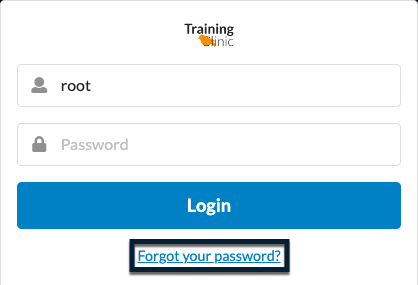
Click Forgot your password? to access the Password Reset page.
-
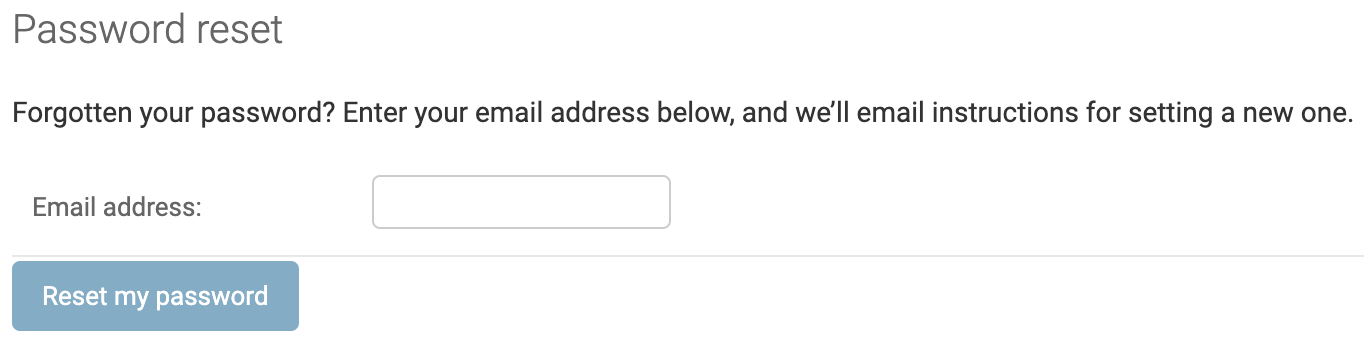
Enter the email address associated with the staff profile.
-
Click Reset my password.
-
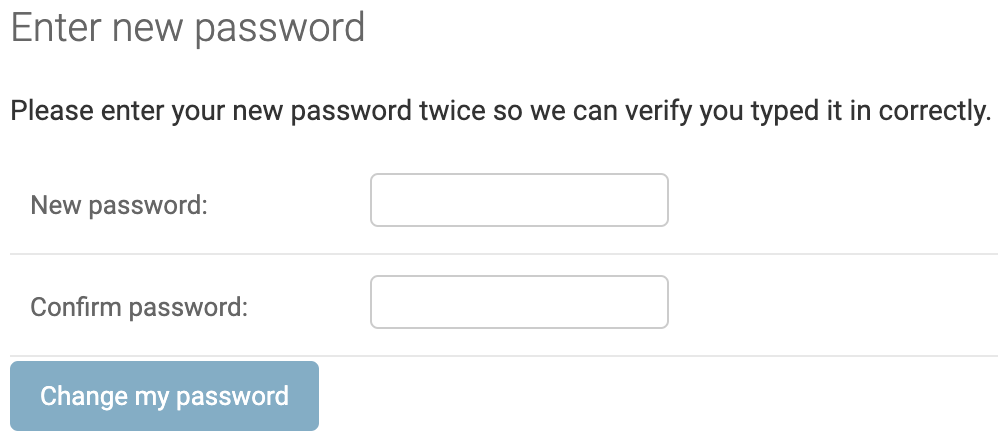
Check the email inbox for a message from Canvas Medical. Follow the link to the Enter new password page.
Open the password link in an incognito window. Attempting to access the link while the Canvas instance is open may result in an error.
-
Complete the New password field with the desired password, then re-enter it in the Confirm password field.
-
Click Change my password.
-
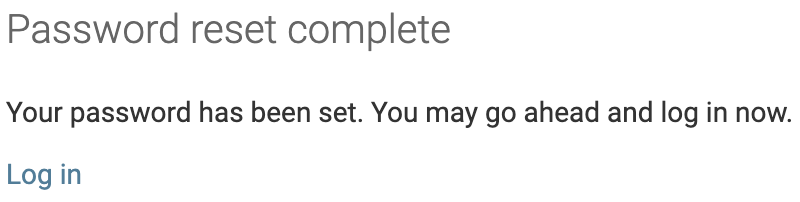
A confirmation page will appear, confirming that the password has been reset.
-
Select Login to return to the login screen for the clinic.
-
Log in using username and newly reset password:
-
Username: By default, the username is the first initial of the user's first name and full last name in lowercase (e.g.,
jsmith).-
Admins can override the default username in Staff Details during staff creation. If the username needs to be updated after the user has been created in Canvas, contact Canvas Support.
If the user is having difficulty logging in to Canvas, confirm with them they are using the correct URL and using the correct format. Usernames are case sensitive.
-
-
User Lockout
After five consecutive failed login attempts, a Canvas user will be locked out of their account.
Important: Sending a password reset email does not unlock a locked account. If a user is locked out, admins must first clear the access attempts using the steps below, then the user can log in with their existing password or complete a password reset if needed.
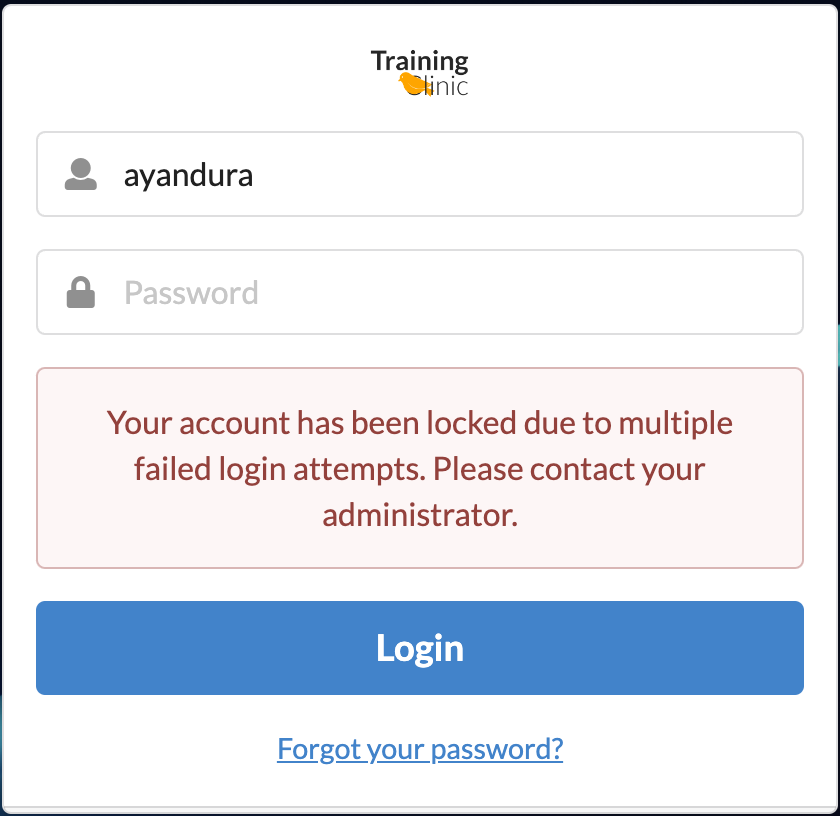
Locked Accounts
-
The user will see a notification indicating their account is locked and should contact their admin for assistance.
-
If no admin intervention occurs, the lockout will expire after one hour, allowing the user to log in with the existing password or reset their password if needed.
Setup & Configuration
Removing User Access Attempts
-
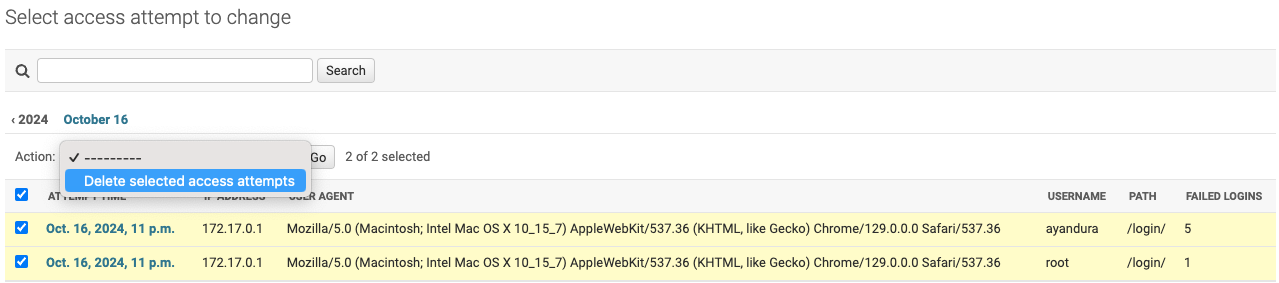
Navigate to Settings > AXES: Access attempts.
-
Check the box next to each applicable entry.
-
From the Action dropdown menu, select Delete selected access attempts and click Go to finalize the deletion.
-
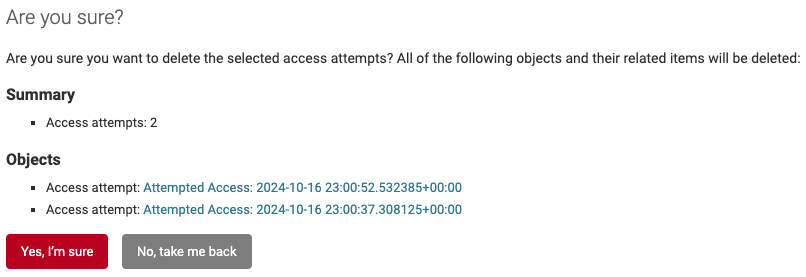
Confirm the deletion on the next screen by clicking Yes, I’m sure.
-
Notify the user that they can now attempt to log in again.
Admin Password Reset for Users
While users can initiate the password reset process themselves, designated admins can also push password resets:
-
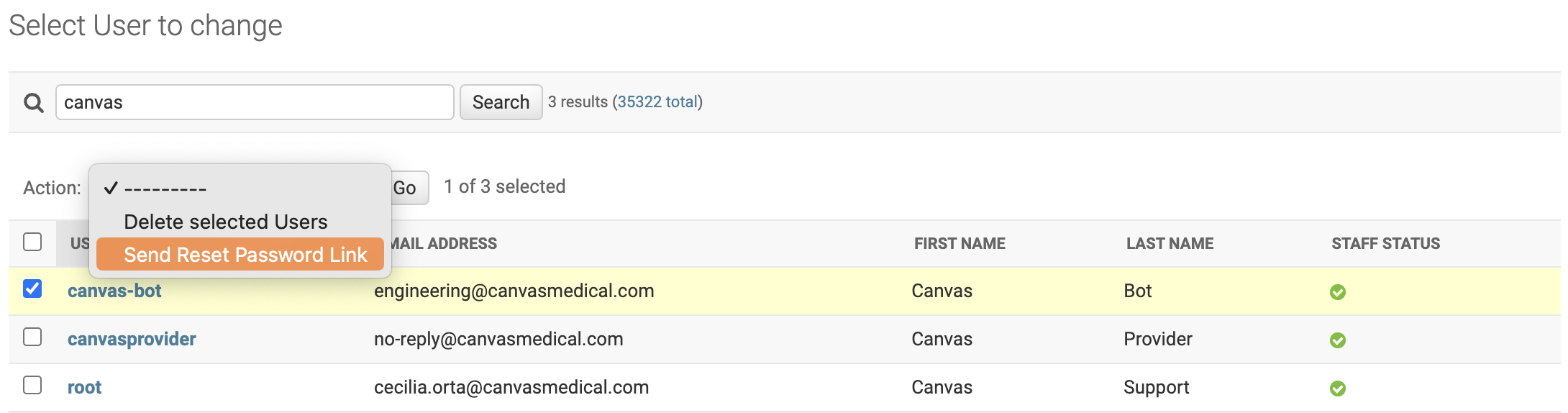
Navigate to Users under Settings.
-
Check the box next to the user who needs the password reset.
-
From the Action menu, select Send Reset Password Link and click Go.
-
On the confirmation page, click Yes, I'm sure to confirm deletion.
-
A password reset email will be sent to the email address listed in the user's staff profile.
FAQ & Troubleshooting
Q: What should I do if I don’t receive a password reset email?
A: Check your junk or spam folder. If the email is not found, verify that the email address entered matches the one associated with your Canvas staff profile.
Q: What happens if I forget my username?
A: Contact your admin for assistance. Admins can view and reset usernames in Staff Details.
Q: How long does the lockout period last?
A: The lockout expires after one hour if no admin intervention occurs.
Q: Can admins reset passwords for users?
A: Yes, admins can send a password reset email to users through the Users section under Settings.
Q: Can I bypass the lockout period?
A: Admins with Admin Lockout permissions can unlock accounts immediately using the steps in this guide.
Q: How do I change a username?
A: If any updates are needed for a user's username, please contact Canvas Support. This cannot be managed from the customer's side.