
Step 1: Accept Calendar Invitations
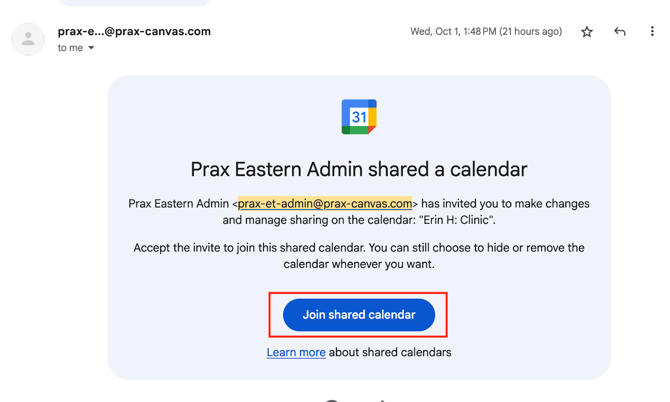
When your calendars are set up, you’ll receive two invitations by email from Prax:
- Clinic calendar – for patient appointment availability
- Admin calendar – for times you are unavailable (vacation, admin work, etc.)

✅ Do this: Open both emails and click “Join shared calendar”
Step 2: View Calendars in Google Calendar
Once you click “Join shared calendar”, a new browser tab with Google Calendar will open
✅ Do this: Click “Add” to add the shared calendar to your calendars
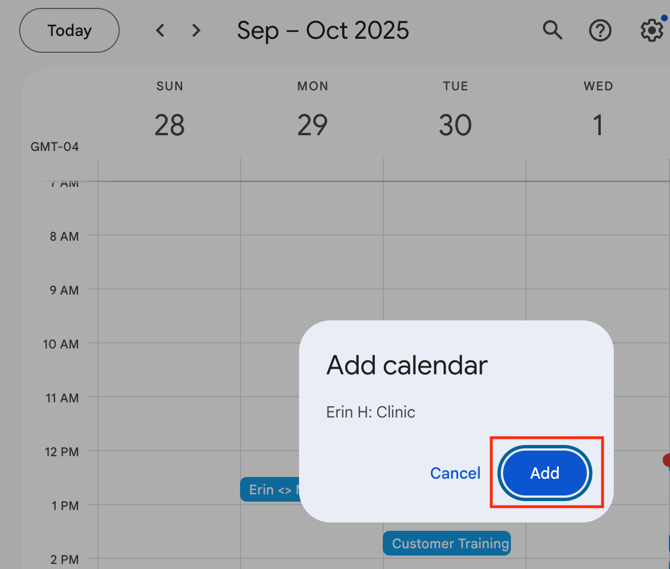
✅ Do this: Go back to your email inbox and click “Join shared calendar” for the second invite and “Add” again in the calendar browser window that opens
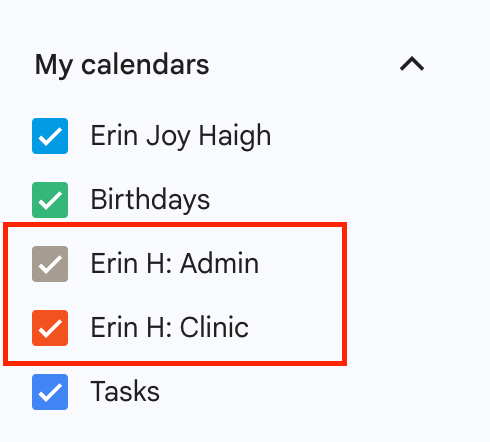
Confirm you see both calendars (Clinic and Admin) checked on under “My Calendars” (left hand side of the window under the current month)
- “Your Name: Clinic”
- “Your Name: Admin”
Step 3: Update Your Availability
Add events directly to your calendars to control availability in Canvas:
- Clinic calendar → Add events for times you’re available to see patients.
- Any event on the Clinic calendar (as long as it’s not overlapped by an Admin event) means you’re available for appointments.
- Admin calendar → Add events for times you’re unavailable, such as vacation or administrative work.
- Any event on the Admin calendar will block off that time, so you won’t be available for patients.
✅ Do this: Create the calendar events to indicate when you want to be available or unavailable for patient visits. You can create repeating calendar events to have the same schedule repeat over days, weeks, etc.
- Either create a new calendar event, or click on an existing event to edit

Click the down arrow in the event window to expand the repeat settings.
- Choose “Every weekday” to repeat the event Monday–Friday (for example, to block off 30 minutes for lunch each day).
- Choose “Weekly on [Day]” to repeat the event on the same day each week (for example, every Friday).

- Or, you can set a custom schedule (e.g., if you want to have the same clinic hours every day except Wednesdays: M, Tu, Th, F)

Two additional scheduling examples:
- Clinic calendar: “Available 9am–12pm every weekday”

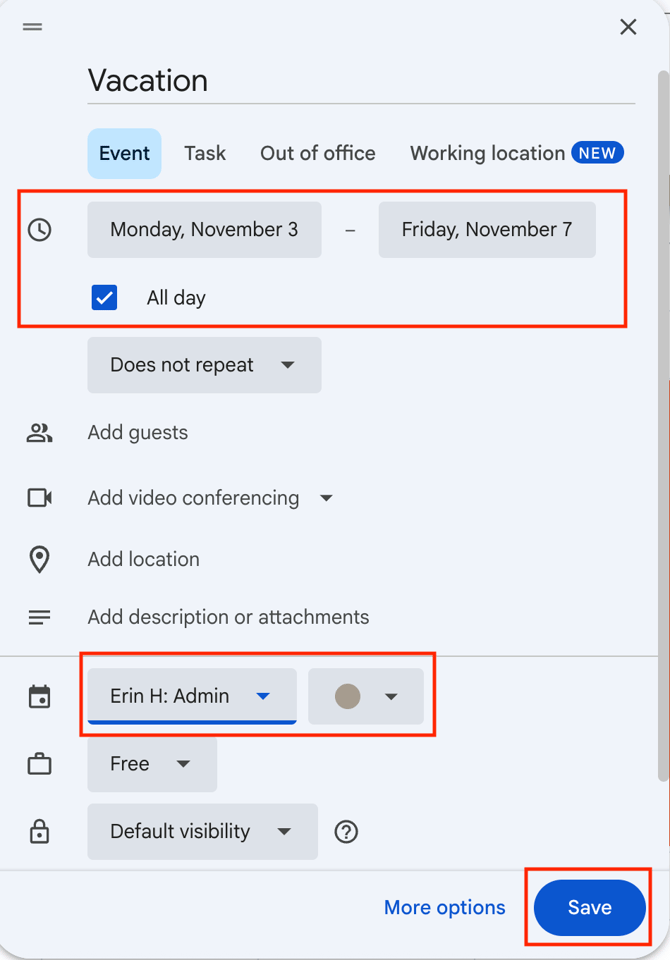
- Admin calendar: “Vacation from November 3-7”
Step 4: Automatic Sync to Canvas - No action needed
Any changes you make in Google Calendar will automatically sync to your Canvas EHR schedule availability twice daily - at 11:30AM CT and 7:30PM CT. You don’t need to make changes in Canvas directly.
Summary
- Accept both the Clinic and Admin calendar invites from your email inbox.
- Add and update events in Google Calendar.
- Changes sync automatically with Canvas twice daily.
- Manage everything in one place.
If you run into any issues, contact Prax support.