
This guide is designed for providers using the Provider Availability plugin to manage their scheduling directly within Canvas, replacing the need to use Google Calendar for availability.
This article covers:
- How to access and navigate the Provider Availability panel.
- Setting up recurring weekly hours, specific visit types, and locations.
- Managing one-off blocks for time off and recurring blocks for personal time (e.g., lunch).
- Configuring same-day and next-day holds to manage last-minute appointments.
- Adjusting buffer times and booking lead times.
- Troubleshooting common issues, such as time zone settings or sync delays.
Note: Provider Availability is an optional feature. If you are interested in transitioning from Google Calendar to this plugin, or if you need assistance with setup, please reach out to Prax support at support@praxhealth.com to request access.
For some providers, we have moved availability management into Canvas. Instead of adding events to your Prax Google Calendars, you now set your schedule directly in the Provider Availability panel inside Canvas.
You manage everything in one place, and your changes flow to your Canvas schedule automatically. This FAQ walks you through the full setup, from your first login to editing, time off, and troubleshooting.
How do I open the Provider Availability panel?
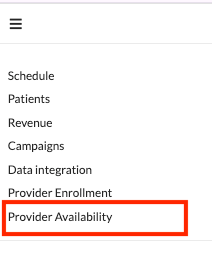
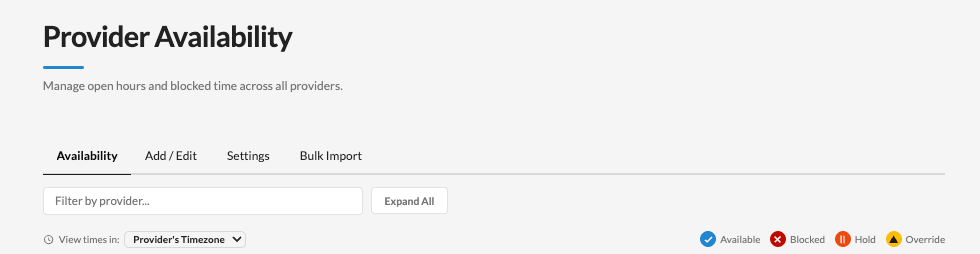
Log in to Canvas and open the provider menu (the menu you use to reach your everyday Canvas tools). Select Provider Availability. The panel opens with a few tabs across the top:
- Availability: an overview of your current hours, blocks, and holds.
- Add / Edit: where you create and change your availability rules and time off.
- Settings: where your time zone and booking preferences live.
If you do not see Provider Availability in your menu, contact Prax support and we will confirm your access.
How do I set my recurring weekly hours?
Recurring hours are the foundation of your schedule. They tell Canvas the days and times you are open to see patients.
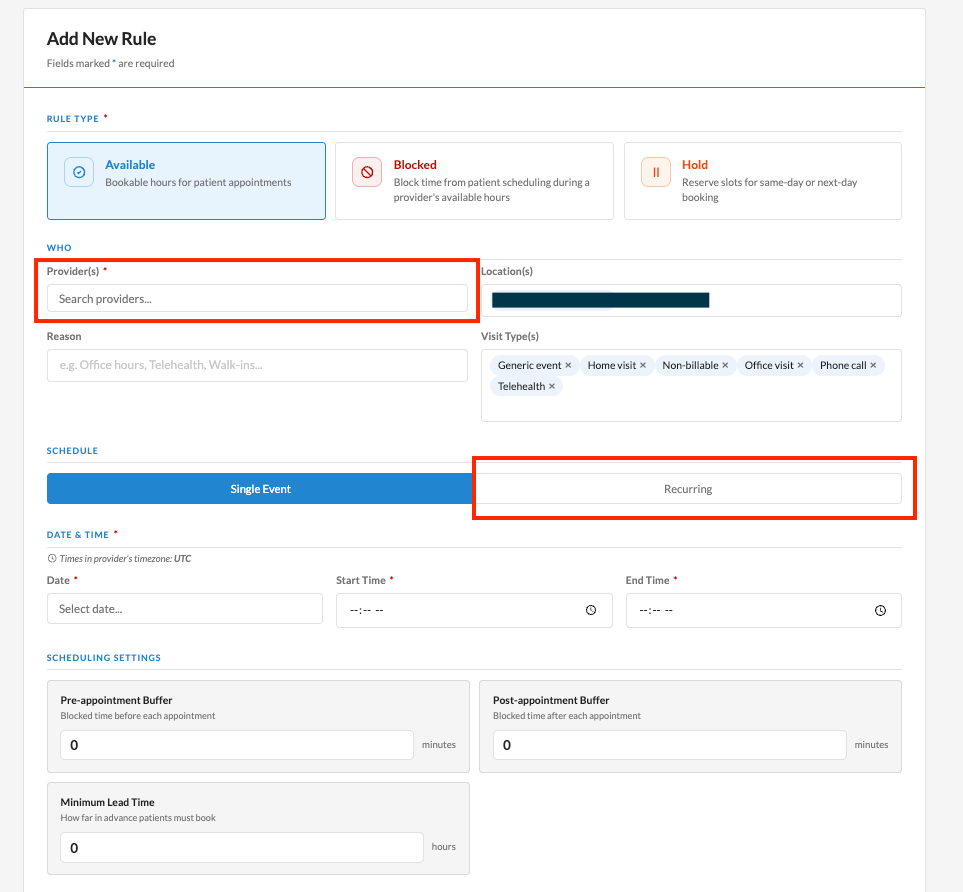
Go to the Add / Edit tab and create an availability rule. For each rule you choose:
- The day of the week.
- The start and end time of the window.
- The location the hours apply to.
- The visit type the hours apply to, if you want to limit them.
You can add more than one window to the same day. For example, 9:00 to 12:00 and 1:00 to 5:00 on Mondays creates a morning block and an afternoon block with a midday gap. Once saved, those windows become bookable time on your Canvas schedule.
Can I set different hours by location or by visit type?
Yes. Each availability rule can be tied to a specific location, a specific visit type, or both. If you leave location or visit type blank, the hours apply broadly. This lets you, for example, offer telehealth on certain days and in-person visits on others, or open different hours at two locations.
Can my hours repeat on a schedule other than every week?
Yes. When you create a rule, you can set how often it repeats, such as every week, every two weeks, or a custom interval. You can also set an effective start and end date if a schedule should only apply for a certain period, which is useful for seasonal hours or a temporary coverage arrangement.
How do I block a single day or a few hours off (PTO, vacation, appointments)?
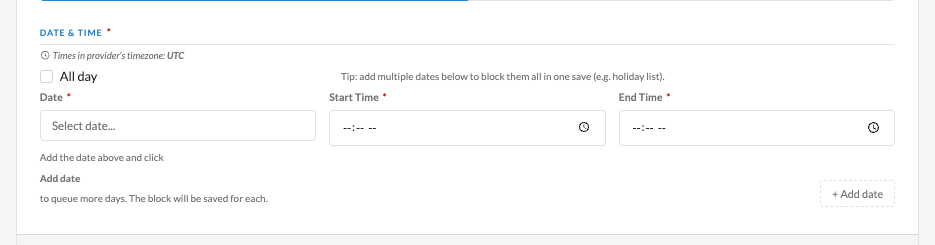
Use a one-off block for anything that happens once. In the Add / Edit tab, create a block and choose:
- The date, or a date range for multi-day time off.
- Whether it is all day, or a specific start and end time.
- A short reason, such as vacation or a personal appointment.
The blocked time is removed from your bookable availability, so patients will not be able to schedule during it.
How do I set a recurring block, like a daily lunch or weekly admin time?
Use a recurring block for time you want to protect on a regular basis. In the Add / Edit tab, create a recurring block, choose the day or days and the time window, and add a reason such as lunch or admin time. A recurring block repeats automatically, so you set it once rather than blocking each day individually. A common example is blocking 12:00 to 12:30 every weekday for lunch.
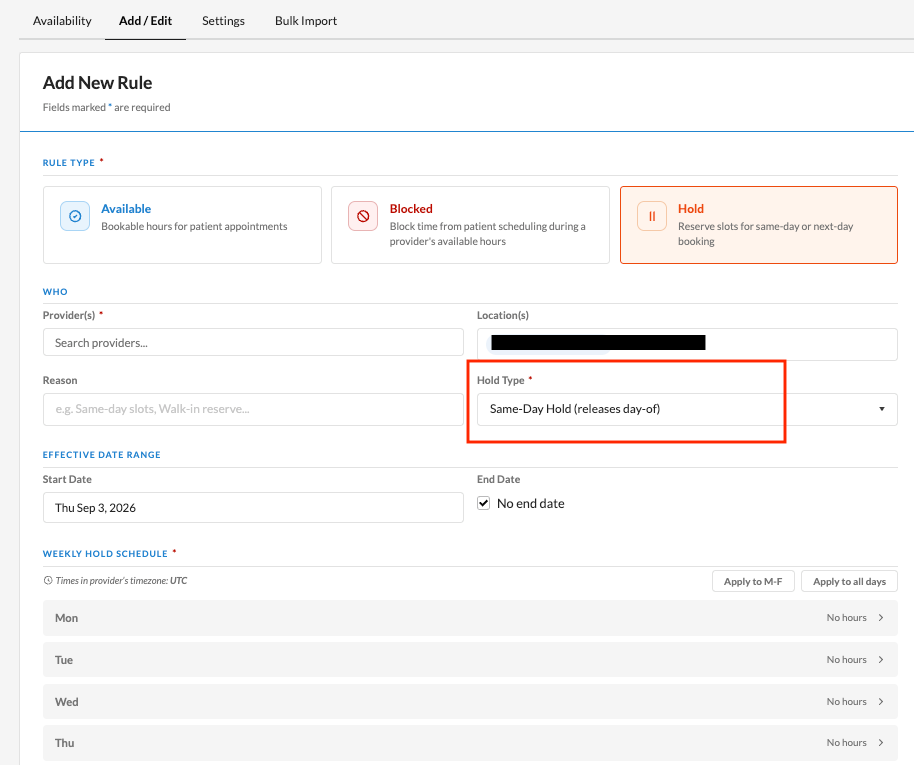
What are same-day and next-day holds?
Holds are a special kind of recurring block that let you reserve capacity for urgent or last-minute appointments instead of letting those slots fill up early. There are two options:
- Same-day hold: the slot stays reserved until the morning of that day, then opens for booking. Use this to keep room for patients who need to be seen the same day.
- Next-day hold: the slot stays reserved until the day before, then opens for booking. Use this to protect near-term capacity while still giving patients a little lead time.
Holds are managed on a rolling basis, so reserved slots open automatically as each date approaches. You do not need to release them by hand.
How do I add buffer time between appointments?
Availability rules include buffer settings so you can build in a few minutes before or after visits for notes, cleanup, or a short break. Set a pre-appointment buffer, a post-appointment buffer, or both when you create or edit a rule. Canvas applies the buffer automatically as appointments are booked, so the time stays protected on your schedule.

Can I control how far in advance patients book, and appointment length?
Yes. Availability rules include booking settings. You can set a minimum lead time, meaning how far in advance a patient must book before a slot, and the slot length that determines the size of each bookable opening. Adjust these when you create or edit a rule to match how you like to run your day.
How do I edit or remove availability, blocks, or holds?
Open the Availability tab to see everything currently in place. Select any rule, block, or hold to edit its details, or remove it if it no longer applies. Edits take effect as soon as you save. If you are going on leave, for example, you can add a one-off block for the dates rather than deleting your recurring hours, so your normal schedule returns automatically when you are back.
Will my changes show up automatically?
Yes. Anything you set in the Provider Availability panel syncs to your Canvas schedule automatically. Your open hours appear as available time, and your blocks and holds appear as unavailable time. There is no separate step to publish, and you do not need to edit any calendar by hand. Changes usually appear within a few minutes.
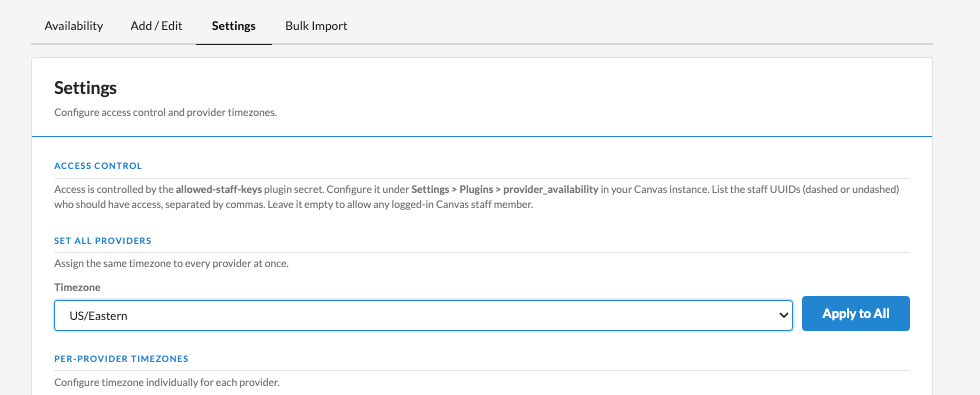
What about my time zone?
Your practice has a default time zone, and each provider or location can have their own time zone. You can confirm or update a time zone on the Settings tab. If your time zone changes, your existing hours and blocks are adjusted to match, so you do not have to re-enter them.
Do I still need to use my Prax Google Calendar for availability?
No. Availability is now managed in the Provider Availability panel in Canvas, so you do not add or edit Clinic and Admin calendar events to control when patients can book. You can still use your personal or work calendar for your own reminders, but those events no longer drive your Canvas availability.
Troubleshooting & Support
Note: Provider Availability is an optional feature. If you do not see it in your menu, it may not be enabled for your account.
Q: Why can't patients book time I expected to be open?
A: Check the Availability tab and confirm you have an availability rule covering that day, time, location, and visit type. Then check that no block or hold is overlapping the same window, since blocks take priority over open hours.
Q: Why is a slot I opened not showing up yet?
A: These can take up to 5 minutes to sync, then refresh your Canvas schedule. Also confirm the rule is active and, if you set an effective date range, that today falls within it.
Q: Why do my hours look shifted by a few hours?
A: This is usually a time zone setting. Open the Settings tab and confirm your time zone is correct.
Q: Why are reserved same-day slots not opening?
A: Same-day and next-day holds release on their own as the date approaches, the same day for a same-day hold and the day before for a next-day hold. If a slot has not opened when you expect it to, confirm the hold type is set the way you intended.
Q: How do I enable Provider Availability for my account or get help?
A: If you are interested in using Provider Availability instead of the regular Google Calendar, or if you need help getting your schedule set up, please reach out to Prax support at support@praxhealth.com to discuss enabling it.