
If you plan to see patients virtually, you must ensure you have a HIPAA-compliant telehealth service and corresponding link for patients to access their visits with you. This article reviews how to set up a telehealth conferencing provider, add it to your Canvas EHR and test it.
Step 1: Choose a Telehealth Provider
If you have not already done so, please choose a HIPAA-compliance telehealth conferencing provider. Two common options are:
- Doxy.me – offers a free option
- Zoom for Healthcare – available at $159 annually
Once you have created your account, you will receive a personal meeting room (telehealth) link. For example: https://doxy.me/your-practice-name
Step 2: Update Your Telehealth Link in Canvas
Each staff member must update their own personal meeting room link within their Canvas EHR staff profile. If multiple teammates work in your Canvas instance, each provider needs their unique telehealth link.To update your profile:
- Log in to your Canvas EHR instance
- Click the menu icon (three horizontal bars in the top-left)

- Select Settings
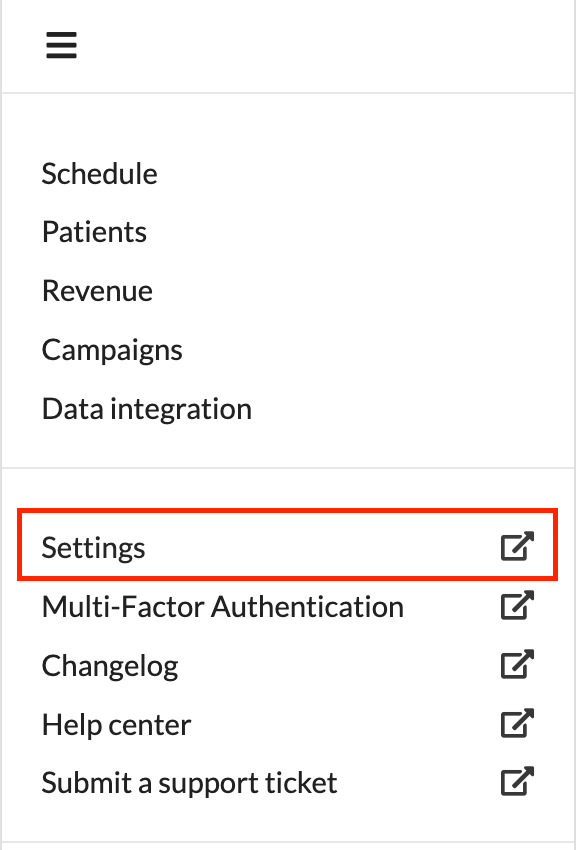
- In the Settings window, scroll to Practice > Staff. Click Change

- Click on the name of the staff member you want to update
- Scroll down until you find the Personal meeting room link: field (directly under “Language”)
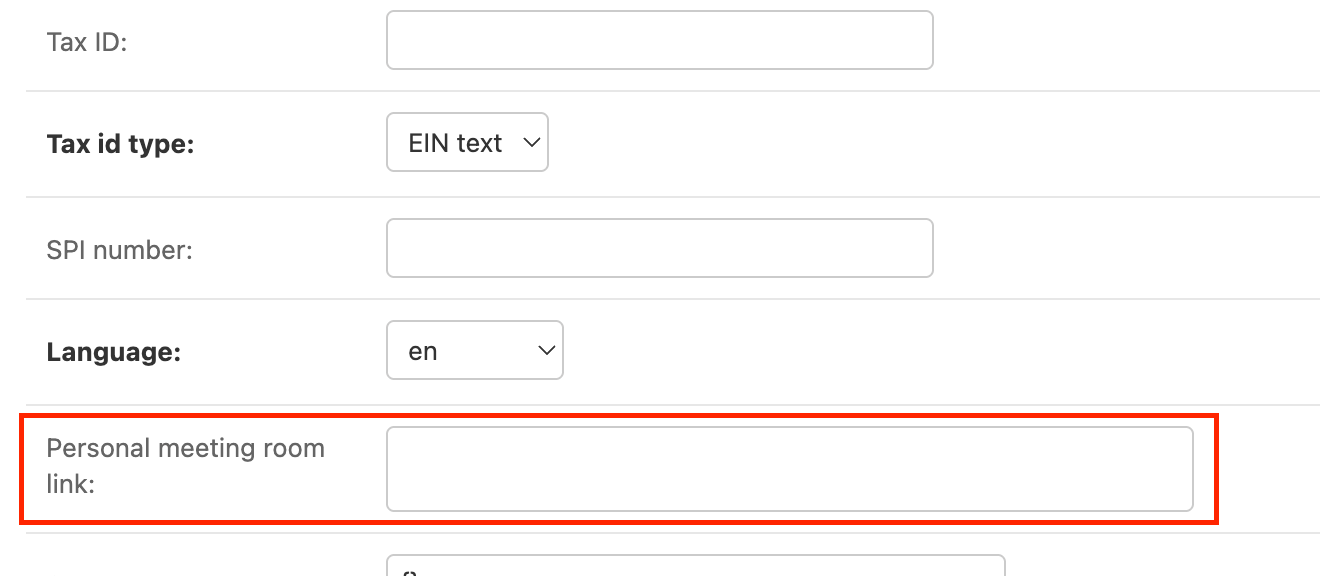
- Paste your telehealth link into this field
- Scroll to the bottom of the Staff settings page and click Save

Step 3: Test Your Telehealth Link
Before using your link with patients, we recommend testing it to ensure it works properly. You can simply test your personal meeting room link on your own from a browser, or test with a family or friend.
Test on your own
- To ensure the meeting room link is valid, open a web browser (on your computer or phone) and navigate to your telehealth personal meeting room link
- Make sure the URL goes to your personal meeting room and doesn’t require a password to join
- You’ll be placed in the waiting room unless you’re logged in elsewhere and “admit yourself” you the meeting
Test with a Family Member or Friend
- Share your personal meeting link with someone you trust.
- Have them join a meeting while you are logged in.
- Confirm that they can successfully connect and that audio/video work as expected.
Summary of Next Steps
- Choose a telehealth provider and create an account.
- Update your Canvas staff profile with your personal meeting link.
- Test your link before using it with patients.
If you run into any issues, contact Prax support. We’re here to help!